


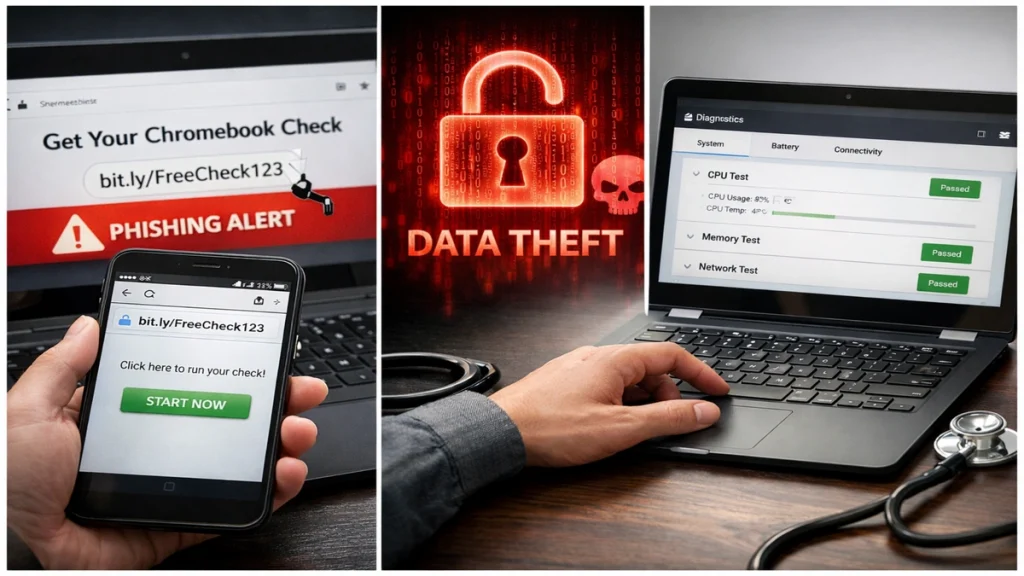
The search for tinyurl.com/lkmschromebookcheck reflects a common need among Chromebook users: a quick and simple way to verify device health, performance, and security. Many users want to confirm that their battery is functioning properly, that memory and CPU usage are stable, and that their device is not compromised. Shortened links often appear to offer an easy shortcut to these answers, but they also remove transparency about where a link leads.
This lack of visibility introduces risk. When a user clicks a shortened URL, they hand control to a redirection system that can route them anywhere, including to sites that mimic legitimate services or collect credentials under false pretenses. For this reason, safe Chromebook diagnostics should never depend on unknown web links, especially when secure, built-in tools already exist within ChromeOS itself.
ChromeOS includes official diagnostic features designed to provide accurate information about hardware health, network stability, and system performance. These tools operate locally on the device and do not transmit sensitive data to external servers. When combined with cautious browsing practices and basic link hygiene, they allow users to maintain their devices without exposing themselves to phishing or malware.
Understanding this distinction between internal diagnostics and external shortcuts is essential. The safest Chromebook check is not faster or flashier, but quieter, built-in, and verifiable.
Built-In Chromebook Diagnostics
ChromeOS includes a Diagnostics application that allows users to inspect core system components such as battery health, CPU load, memory stability, and network connectivity. The tool is accessed through system settings and provides structured insight into the device’s operational state.
Battery diagnostics display charge cycles, current health indicators, and potential discharge anomalies. Connectivity tests show whether Wi-Fi and other network interfaces are functioning correctly. CPU and memory metrics reveal whether the system is under unusual load or encountering errors.
These diagnostics run entirely on the Chromebook itself. They do not require logging into third-party services or visiting external websites. This isolation makes them inherently safer than any online tool, especially one accessed through an anonymous shortened link.
The design philosophy behind these tools is simple: the device should be able to report on itself without involving unknown intermediaries.
CROSH: Advanced Local Diagnostics
For users who want deeper insight, ChromeOS includes a command-line environment known as CROSH. This tool allows more technical users to run battery tests, storage checks, and network diagnostics through typed commands. – tinyurl.com/lkmschromebookcheck.
CROSH is accessed directly on the device using a keyboard shortcut and operates within the ChromeOS environment. It does not connect to external servers by default and does not expose data beyond the device.
This makes CROSH particularly valuable for administrators, technicians, and privacy-conscious users who want detailed diagnostics without external exposure.
Official Tools vs Unknown Short Links
| Official ChromeOS Tools | Unknown Shortened Links |
|---|---|
| Local diagnostics | External redirects |
| No credential entry | May request logins |
| Data stays on device | Data may be transmitted |
| Transparent behavior | Opaque destination |
This contrast highlights why relying on unknown URLs for system checks is unnecessary and potentially harmful.
The Role of Browser Safety Protections
Modern browsers include protections that attempt to block known malicious destinations. These systems analyze URLs and compare them against threat databases, warning users before they access dangerous content.
However, these protections are not infallible. New phishing sites appear constantly, and shortened links can delay detection by hiding the final destination. As a result, user caution remains essential even when browser protections are enabled.
Technology provides a safety net. Awareness provides judgment.
How to Inspect Short Links Safely
If a user encounters a shortened URL claiming to offer a device check or diagnostic, the safest action is not to click it directly. Instead, users can preview the destination through link expansion tools that reveal where the link leads without visiting it.
This allows users to assess whether the destination is a trusted domain or an unknown third-party page. If the destination is unfamiliar, unnecessary, or requests credentials unrelated to the device itself, it should be avoided. – tinyurl.com/lkmschromebookcheck.
No legitimate Chromebook diagnostic requires entering account credentials into an external website.
Expert Perspectives on Device Safety
“Local diagnostic tools are inherently safer than web-based shortcuts because they remove exposure to phishing and data harvesting.”
“Shortened links are effective social engineering tools because they hide the most important information: where the user is actually going.”
“Browser security helps, but safe behavior remains the most important defense.”
These perspectives reinforce a consistent message: convenience should never replace caution.
Benefits of Using Official Diagnostics
| Benefit | Outcome |
|---|---|
| Security | No external exposure |
| Accuracy | Direct system data |
| Privacy | No third-party tracking |
| Reliability | Supported by platform design |
Official tools are not only safer, they are better aligned with how the system is designed to be maintained.
Takeaways
• Shortened links remove transparency and increase risk
• ChromeOS provides built-in diagnostics that are safer and more accurate
• CROSH offers advanced checks without external exposure
• Preview unknown links before interacting with them
• Trust should be based on verification, not appearance
Conclusion
The promise of a fast online Chromebook check can be tempting, especially when delivered through a compact, friendly-looking link. But that promise often conceals risk rather than delivering value. The safest and most effective way to understand Chromebook health is not through the web, but through the operating system itself. – tinyurl.com/lkmschromebookcheck.
ChromeOS was designed with diagnostics built in for a reason. They protect privacy, ensure accuracy, and avoid unnecessary exposure. By using these tools and approaching unknown links with skepticism, users protect not only their devices, but their identities and data.
In digital security, the safest path is rarely the shortest one. It is the one that remains visible.
FAQs
What is tinyurl.com/lkmschromebookcheck
It is a shortened link that claims to offer a Chromebook check but hides its destination.
How can I check Chromebook health safely
Use the built-in ChromeOS Diagnostics app and CROSH tools.
Are browser warnings enough to stay safe
They help, but user caution and link verification remain essential.
Should I trust third-party diagnostic websites
Not unless they are officially supported and transparent.
What is the safest behavior around unknown links
Preview them, verify the destination, or avoid them entirely.