

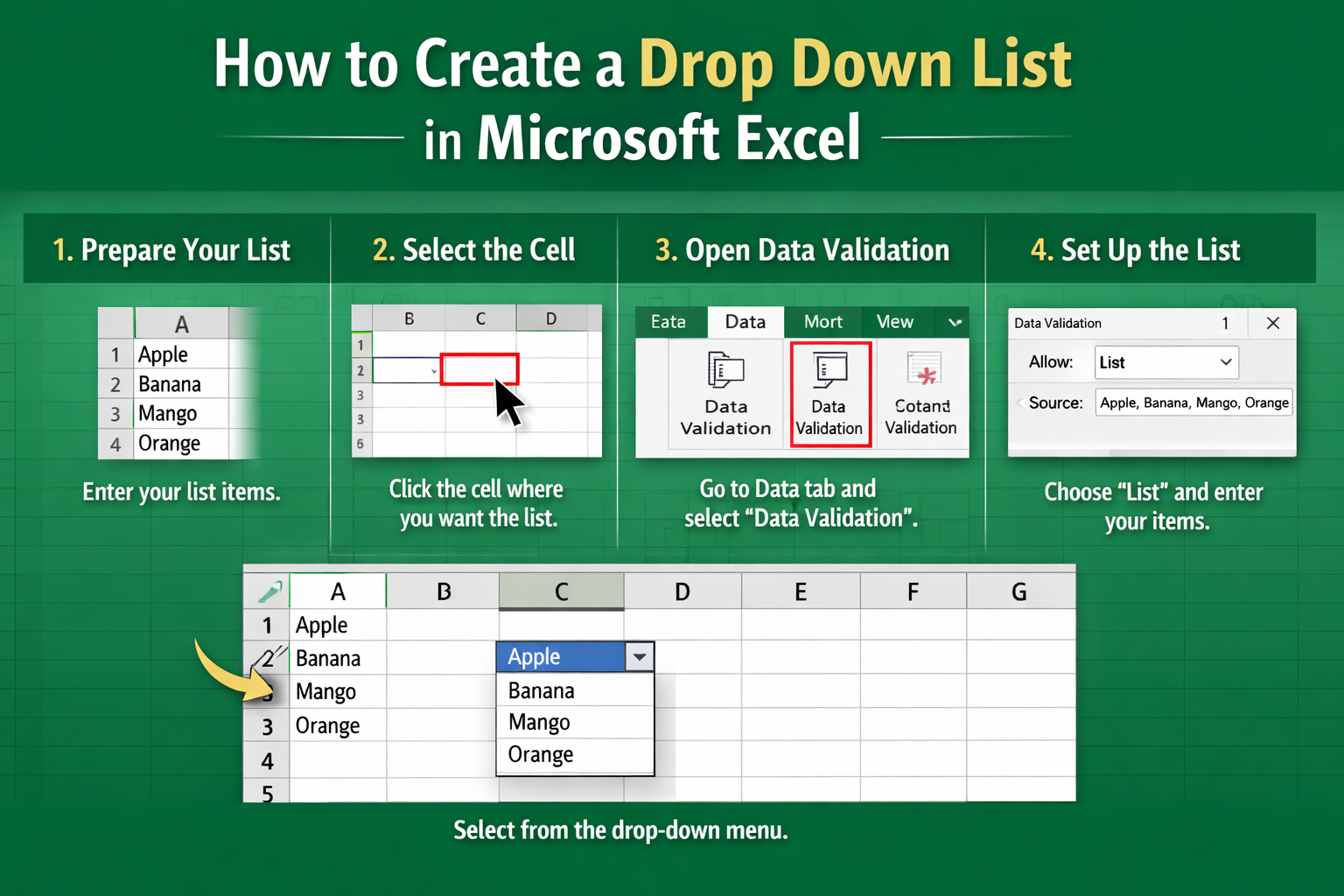
Creating a drop down list in Excel is one of the most powerful techniques for controlling data entry, improving consistency, and designing professional spreadsheets. Whether you are building a sales tracker, inventory management system, employee database, survey form, financial dashboard, or academic grading sheet, drop down lists help prevent typing errors, standardize inputs, and speed up workflow. Many users only understand the basic method of creating a simple list, but Excel offers far more flexibility than most people realize. You can build dynamic lists that update automatically, dependent lists that change based on previous selections, searchable lists for large datasets, and even data-driven lists connected to tables and formulas.
In this comprehensive guide, you will learn everything from the foundational method of creating a simple drop down list to advanced techniques used in professional reporting systems. The goal is not just to show steps, but to help you understand the logic behind Excel’s data validation system so you can design smarter and more scalable spreadsheets.
Understanding Drop Down Lists in Excel
A drop down list in Excel is created using the Data Validation feature. Data Validation allows you to restrict what users can enter into a cell. Instead of allowing free text, you define a list of acceptable values. When the user clicks the cell, a small arrow appears, and they can choose from the predefined options.
This approach solves several common spreadsheet problems:
- Inconsistent spelling (e.g., “Pending” vs “pending”)
- Typing mistakes
- Incorrect formatting
- Unexpected values
- Reporting inconsistencies
Data validation works by setting rules for a cell. These rules can limit numbers, dates, lengths, or lists. When using lists specifically, Excel displays a drop down menu linked to a defined source range or manually entered values.
Why Drop Down Lists Are Important
Drop down lists are not just cosmetic features. They directly improve data quality, reduce errors, and enhance analytical reliability. In business reporting environments, even small inconsistencies can break formulas, pivot tables, and dashboards. A single spelling variation can create multiple categories in a summary report, leading to incorrect conclusions.
Below is a comparison showing the impact of using drop down lists versus manual entry:
| Factor | Manual Entry | Drop Down List |
|---|---|---|
| Typing Errors | Common | Eliminated |
| Data Consistency | Unstable | Standardized |
| Reporting Accuracy | Risky | Reliable |
| Speed of Entry | Moderate | Fast |
| Training Required | Higher | Lower |
Clearly, drop down lists provide a controlled environment that ensures structured data.
Method 1: Creating a Basic Drop Down List
The simplest way to create a drop down list is by entering items directly in Data Validation.
Step-by-Step Process
First, select the cell where you want the drop down list. For example, choose cell B2.
Next, go to the Data tab in the Excel ribbon and click Data Validation. A dialog box appears.
Under the Settings tab:
- In the “Allow” dropdown, select “List.”
- In the “Source” field, type your list items separated by commas.
Example:
Approved,Pending,Rejected
Click OK.
Now the selected cell displays a drop down arrow containing those options.
When to Use This Method
This method works best when:
- The list is small.
- The options rarely change.
- You do not need dynamic updates.
Method 2: Creating a Drop Down List from a Range
A better approach is linking the drop down list to a range of cells.
Step-by-Step Instructions
- Enter your list items in a column, for example A1:A5.
- Select the cell where you want the drop down.
- Open Data Validation.
- Choose “List.”
- In the Source field, select the range (e.g., =A1:A5).
- Click OK.
This method allows you to update the list by editing the source range instead of reopening Data Validation.
Organizing List Data Properly
To keep spreadsheets clean and scalable, professionals often store list data:
- On a separate worksheet
- In hidden columns
- In structured tables
For example, you might create a sheet called “Lists” and store all dropdown sources there.
Recommended Structure
| Sheet Name | Purpose |
|---|---|
| Main Sheet | User data entry |
| Lists Sheet | All drop down sources |
| Summary Sheet | Reports and dashboards |
This separation improves organization and maintainability.
Using Named Ranges for Cleaner Management
Named ranges simplify list management. Instead of referencing A1:A10, you can assign a name like “StatusList.”
Creating a Named Range
- Select the list cells.
- Click in the Name Box near the formula bar.
- Type a name without spaces.
- Press Enter.
Now in Data Validation, use:
=StatusList
Benefits of Named Ranges
| Advantage | Explanation |
|---|---|
| Cleaner Formulas | Easier to read |
| Reusable | Can be used in multiple sheets |
| Dynamic Compatibility | Works well with formulas |
| Better Organization | Centralized control |
Creating a Dynamic Drop Down List
A dynamic drop down list automatically updates when new items are added.
The best way to create this is by converting the source list into an Excel Table.
Steps to Create a Dynamic List
- Select your list.
- Press Ctrl + T.
- Confirm the table.
- Use the table column as the Data Validation source.
When you add new rows to the table, the drop down list automatically includes them.
Creating Dependent (Cascading) Drop Down Lists
Dependent drop downs change based on previous selections. For example:
If Category = “Fruits,” the next list shows only fruit options.
If Category = “Vegetables,” it shows vegetable options.
Structure Example
| Category | Items |
|---|---|
| Fruits | Apple |
| Fruits | Mango |
| Vegetables | Carrot |
| Vegetables | Spinach |
How It Works
- Create separate named ranges for each category.
- Create the first drop down for categories.
- Use the INDIRECT formula for the second list:
=INDIRECT(A2)
This tells Excel to look at the selected category and display the matching named range.
Advanced Techniques
1. Searchable Drop Down Lists
Excel does not natively provide searchable drop downs in older versions, but newer versions allow filtering in data validation through combo box controls or advanced formulas.
2. Preventing Duplicates
You can combine Data Validation with custom formulas to prevent duplicate entries.
Example formula:
=COUNTIF(A:A,A1)=1
3. Using Data Validation with Tables
When combined with structured references, validation lists become highly scalable and enterprise-ready.
Customizing Error Messages and Input Prompts
Excel allows custom messages to guide users.
Input Message Tab
Displays instructions when a user selects a cell.
Error Alert Tab
Prevents invalid entries and shows a warning message.
| Feature | Purpose |
|---|---|
| Input Message | Guides user |
| Error Alert | Blocks incorrect values |
| Stop Style | Prevents invalid entry |
| Warning Style | Allows override |
Performance Considerations
Large spreadsheets with many drop down lists may slow down performance if:
- Lists reference entire columns.
- INDIRECT is used excessively.
- Volatile formulas are overused.
Optimization Tips
- Use defined ranges instead of entire columns.
- Avoid unnecessary volatile functions.
- Keep list ranges organized and centralized.
Common Mistakes and How to Avoid Them
| Mistake | Solution |
|---|---|
| Referencing blank cells | Define exact range |
| Using merged cells | Avoid merging |
| Copy-paste breaking validation | Use Paste Special → Validation |
| Forgetting to check “In-cell dropdown” | Enable option |
Real-World Business Applications
Drop down lists are widely used in:
- HR systems for employee status
- Inventory control systems
- Sales tracking sheets
- Project management dashboards
- School grading systems
Example: Sales Tracker
| Order ID | Product | Status |
|---|---|---|
| 1001 | (Drop Down) | (Drop Down) |
Products List:
- Laptop
- Keyboard
- Mouse
Status List:
- Pending
- Shipped
- Delivered
This ensures reporting consistency in monthly analysis.
Comparing Basic vs Advanced Drop Down Systems
| Feature | Basic List | Dynamic Table | Dependent List |
|---|---|---|---|
| Manual Update | Yes | No | No |
| Scalable | Limited | High | High |
| Requires Formulas | No | No | Yes |
| Suitable for Beginners | Yes | Yes | Intermediate |
Security and Data Integrity
Drop down lists improve data governance by:
- Limiting incorrect inputs
- Preventing unauthorized values
- Maintaining structured reporting
However, advanced users can still override validation by copying external data. For stronger control, combine with sheet protection.
Troubleshooting Guide
Drop Down Arrow Not Appearing
Check:
- Data Validation is set to List.
- “In-cell dropdown” is enabled.
- Cell is not merged.
List Not Updating
Convert source into a table or dynamic named range.
INDIRECT Not Working
Ensure named ranges exactly match the category text.
Conclusion
Creating a drop down list in Excel is far more than a simple formatting trick. It is a powerful data management tool that improves consistency, accuracy, and workflow efficiency. From basic comma-separated lists to advanced dependent and dynamic systems, Excel provides a flexible environment for building professional-grade spreadsheets. When implemented correctly, drop down lists reduce errors, simplify user input, enhance reporting reliability, and support scalable spreadsheet architecture. Mastering this feature allows you to transform ordinary worksheets into structured, intelligent data systems suitable for business, education, and personal productivity.
click here for more blogs posts
FAQs
1. Can I create multiple drop down lists in one sheet?
Yes, you can apply Data Validation to as many cells as needed across a worksheet.
2. How do I edit an existing drop down list?
Open Data Validation for the cell and modify the source range or values.
3. Can drop down lists update automatically?
Yes, if you use Excel Tables or dynamic named ranges.
4. How do I remove a drop down list?
Select the cell, open Data Validation, and click Clear All.
5. Can I create dependent drop down lists?
Yes, by using named ranges and the INDIRECT function for cascading behavior.