

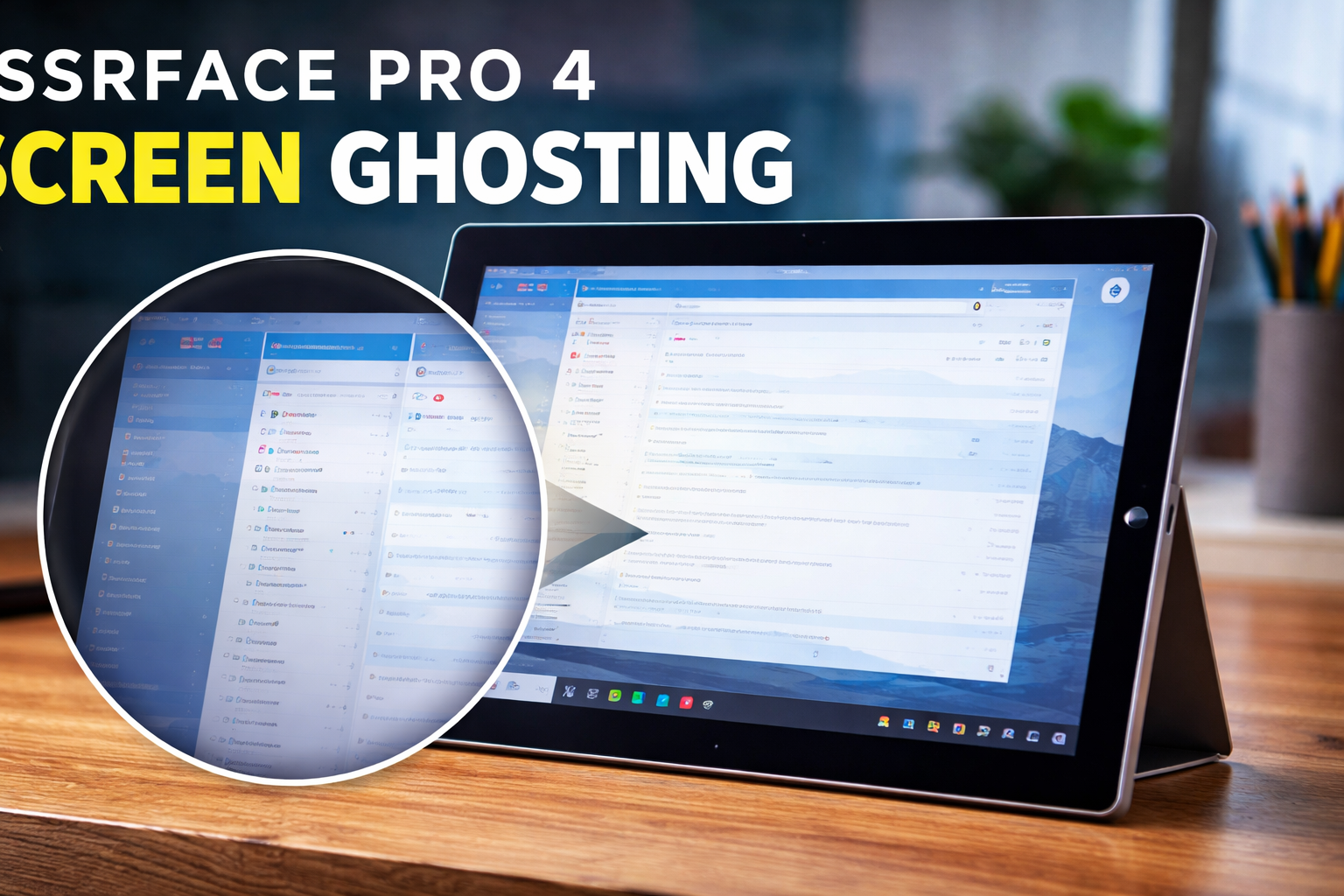
The Surface Pro 4 screen ghosting issue is a well-known Conclusion
In conclusion, the Surface Pro 4 screen ghosting issue is a display-related problem that can affect visual clarity, productivity, and overall user experience, but in many cases it is manageable with proper diagnosis and corrective actions. Ghosting is often caused by software glitches, outdated graphics drivers, incorrect display settings, overheating, or in some situations, hardware limitations of the screen panel. Understanding the difference between temporary ghosting and permanent burn-in is important, as ghosting is usually reversible while burn-in may require more advanced solutions. problem experienced by many users of this device. Screen ghosting refers to visual artifacts where previous images remain faintly visible on the screen even after the display content changes. This effect can reduce visual clarity, affect productivity, and create discomfort during extended use. Ghosting may appear as blurred text shadows, lingering icons, slow pixel transitions, or faint duplicates of previous images. Understanding why this happens and how to address it is essential for maintaining optimal device performance.
The Surface Pro 4 is a premium 2-in-1 device designed for professional, educational, and creative use. Because it features a high-resolution touchscreen display, any display irregularity becomes more noticeable compared to standard laptops. Screen ghosting can occur due to hardware issues, display panel limitations, driver conflicts, overheating, or aging components. This article provides a detailed explanation of the causes, symptoms, troubleshooting methods, preventive measures, and repair options related to Surface Pro 4 screen ghosting.
What Is Screen Ghosting?
Screen ghosting is a visual phenomenon where remnants of a previously displayed image temporarily remain visible on the screen. It is often confused with burn-in, but they are different issues.
Ghosting vs Burn-In
| Feature | Ghosting | Burn-In |
|---|---|---|
| Duration | Temporary | Permanent |
| Cause | Slow pixel response or refresh issues | Long-term static image exposure |
| Fixable | Usually yes | Often difficult |
| Visibility | Fades over time | Remains visible always |
Ghosting typically appears when pixels take longer to change color or when the refresh rate does not match the display response speed.
Symptoms of Surface Pro 4 Screen Ghosting
Users experiencing this issue may notice the following signs:
- Faint shadow trails behind moving objects
- Blurry text during scrolling
- Lagging image transitions
- Screen flickering combined with ghost images
- Temporary image persistence after switching windows
- Uneven color changes
These symptoms can occur while browsing, gaming, watching videos, or using design software.
Common Causes of Screen Ghosting on Surface Pro 4
Understanding the root cause helps in selecting the correct solution.
1. Display Panel Limitations
The Surface Pro 4 uses a high-resolution LCD panel. Some LCD panels naturally have slower response times, which can result in ghosting effects during fast motion.
2. Graphics Driver Issues
Outdated or corrupted graphics drivers can interfere with screen rendering. Since the device relies on integrated graphics, driver stability is crucial.
3. Overheating
Excessive heat may temporarily affect display performance and system stability. Prolonged heat exposure can increase ghosting visibility.
4. Hardware Aging
With time, display components degrade. Older devices are more prone to visual artifacts.
5. Refresh Rate Settings
Incorrect display settings can contribute to motion blur or ghosting effects.
6. Power Management Settings
Battery-saving modes sometimes reduce display performance, indirectly increasing ghosting visibility.
Troubleshooting Surface Pro 4 Screen Ghosting
Below is a structured approach to diagnosing and resolving the issue.
Step 1: Restart the Device
A simple restart clears temporary memory glitches and resets display processes.
Step 2: Update Graphics Drivers
Keeping drivers updated improves compatibility and display stability.
Step 3: Adjust Display Settings
Check resolution and refresh rate settings in system display options.
Step 4: Disable Power Saving Mode
Switch to balanced or high-performance mode for testing.
Step 5: Check for System Updates
Operating system updates may include display-related fixes.
Step 6: External Monitor Test
Connecting to an external monitor helps determine if the issue is hardware-related.
Detailed Fix Methods
Method 1: Update Display Drivers
Outdated drivers are one of the most common causes. Updating ensures proper communication between hardware and software.
Steps generally include:
- Opening device manager
- Selecting display adapters
- Checking for driver updates
- Restarting after installation
Method 2: Adjust Visual Effects
Reducing animation settings can minimize ghosting visibility.
| Setting Adjustment | Effect |
|---|---|
| Disable animations | Reduces motion blur |
| Adjust performance settings | Improves responsiveness |
| Turn off transparency | Enhances clarity |
Method 3: Perform System Calibration
Color calibration tools can help improve display accuracy and reduce visual artifacts.
Method 4: Thermal Management
If overheating is suspected:
- Clean ventilation areas
- Avoid using on soft surfaces
- Use cooling stands
- Close background apps
Method 5: Factory Reset (Last Resort)
If software corruption is suspected, backing up data and performing a system reset may resolve persistent display issues.
Hardware-Related Solutions
If troubleshooting does not fix the problem, hardware repair may be required.
Possible Hardware Issues
- Faulty display panel
- Damaged ribbon cable
- Motherboard graphics fault
- Internal screen degradation
In such cases, professional repair is recommended.
Preventing Screen Ghosting
Prevention is better than repair. Follow these practices:
- Keep system updated
- Avoid extreme heat
- Use official chargers
- Adjust brightness appropriately
- Avoid static images for long periods
- Maintain proper ventilation
Comparison of Software vs Hardware Causes
| Cause Type | Indicators | Solution |
|---|---|---|
| Software | Temporary ghosting | Update or reset system |
| Driver-related | Happens after updates | Reinstall drivers |
| Hardware | Persistent issue | Professional repair |
| Overheating | Occurs during heavy use | Cooling improvement |
When to Seek Professional Repair
Consider repair if:
- Ghosting appears constantly
- External monitor works normally
- Screen shows permanent shadows
- Device overheats frequently
- Visual distortion worsens over time
A certified technician can diagnose whether screen replacement is required.
Impact on Productivity
Screen ghosting can affect:
- Graphic designers
- Video editors
- Students
- Office workers
- Developers
Clear visuals are essential for precision tasks, making timely resolution important.
Conclusion
In conclusion, the Surface Pro 4 screen ghosting issue is a display-related problem that can affect visual clarity, productivity, and overall user experience, but in many cases it is manageable with proper diagnosis and corrective actions. Ghosting is often caused by software glitches, outdated graphics drivers, incorrect display settings, overheating, or in some situations, hardware limitations of the screen panel. Understanding the difference between temporary ghosting and permanent burn-in is important, as ghosting is usually reversible while burn-in may require more advanced solutions.
Frequently Asked Questions (FAQs)
1. What is Surface Pro 4 screen ghosting?
It is a display issue where faint images remain visible after the screen content changes.
2. Is screen ghosting permanent?
Usually no. It is often temporary and related to software or display settings.
3. Can driver updates fix ghosting?
Yes, in many cases updating or reinstalling graphics drivers resolves the issue.
4. Does overheating cause ghosting?
Yes, excessive heat can temporarily impact display performance.
5. When should I replace the screen?
If ghosting is permanent and troubleshooting fails, professional screen replacement may be necessary.
 IQ Newswire
  Awais Shamsi