


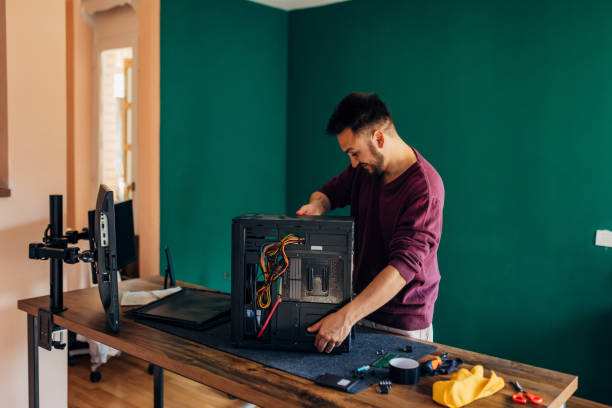
Building a personal computer (PC) is both a practical and rewarding project. For many, it offers an opportunity to create a machine that fits their exact needs, whether for gaming, content creation, productivity, or casual use. A custom-built PC often provides better performance and reliability than off-the-shelf prebuilt systems and allows future upgrades without replacing the entire machine. While the process may seem complex at first glance, understanding the components, planning correctly, and following a structured assembly process can make PC building approachable even for beginners. This article explores every detail of building a PC from scratch, including component selection, assembly, software installation, testing, maintenance, and troubleshooting.
Understanding the Core Components of a PC
A personal computer is made up of several essential components, each serving a specific purpose. Understanding their functions is critical before making purchase decisions.
- Central Processing Unit (CPU): The CPU is the brain of the computer, responsible for processing instructions, executing software, and performing calculations. Modern CPUs vary in performance, core count, and clock speed, and these factors determine suitability for different tasks.
- Motherboard: The motherboard is the main circuit board that connects all hardware components, including CPU, RAM, storage devices, and peripherals. Choosing a compatible motherboard is vital because it dictates which CPU, memory, and expansion cards you can use.
- Random Access Memory (RAM): RAM is temporary memory that stores data for active processes. More RAM allows smoother multitasking and faster performance for demanding applications.
- Graphics Processing Unit (GPU): The GPU handles visual output, particularly for games, 3D rendering, and video editing. Some CPUs include integrated graphics, but dedicated GPUs are often necessary for high-performance gaming and creative tasks.
- Storage Devices: Storage comes in the form of solid-state drives (SSD) or hard disk drives (HDD). SSDs are faster and improve boot times and application loading, while HDDs provide larger storage capacity at a lower cost.
- Power Supply Unit (PSU): The PSU delivers stable power to all components. Choosing the right wattage and a reliable brand ensures system stability and safety.
- Case: The PC case houses all components and supports airflow to maintain optimal temperatures. Cases come in different sizes (ATX, Micro-ATX, Mini-ITX) and designs.
- Cooling System: Cooling is essential to prevent overheating. Options include air coolers, liquid cooling, and case fans. Proper cooling ensures longevity and performance.
- Peripherals: While not part of the internal hardware, peripherals like monitors, keyboards, and mice are essential for interacting with your PC.
Table 1: Core PC Components and Key Considerations
| Component | Function | Key Considerations | Recommendations |
|---|---|---|---|
| CPU | Processes instructions | Core count, clock speed, compatibility with motherboard | Intel i5/i7 or AMD Ryzen 5/7 |
| Motherboard | Connects all components | Socket type, RAM slots, expansion support | ATX/Micro-ATX based on case |
| RAM | Temporary active memory | Capacity (16–32 GB recommended), speed | DDR4 or DDR5 depending on motherboard |
| GPU | Graphics and visual output | VRAM, performance for gaming or editing | NVIDIA RTX 3060+ or AMD RX 6700+ |
| Storage | Saves OS and files | Speed and capacity | SSD (NVMe preferred), optional HDD |
| PSU | Supplies power | Wattage and efficiency rating | 650–850W, 80+ Gold certified |
| Case | Houses hardware | Size, airflow, cable management | Mid-tower or full-tower with good airflow |
| Cooling | Prevents overheating | Air vs liquid cooling | Cooler Master, Noctua, Corsair |
Planning Your PC Build
Proper planning is crucial to avoid wasted money, incompatible components, or underperforming systems. Start by defining the primary purpose of your PC:
- Gaming: Focus on GPU performance, sufficient RAM, and a strong CPU. High-refresh monitors may require higher FPS.
- Content Creation: Prioritize CPU cores, RAM capacity, and fast storage for rendering and editing.
- Productivity/Office Work: Balanced CPU and RAM; integrated graphics are often sufficient.
- Budget Builds: Focus on cost-effective CPUs with integrated graphics, affordable motherboards, and basic storage.
Next, determine your budget. Allocate funds based on the purpose of the system. Typically, the GPU and CPU consume the largest portion of a gaming build, while RAM and storage are secondary priorities. Document each selected part and confirm compatibility. Many online tools and manufacturer specifications can help verify that chosen components will work together.
Table 2: Suggested Budget Allocation by Purpose
| Build Type | CPU | GPU | RAM | Storage | PSU/Case | Total Budget Focus |
|---|---|---|---|---|---|---|
| Entry-Level | 20% | 15% | 15% | 15% | 10% | Affordable general use |
| Gaming | 30% | 35% | 15% | 10% | 10% | High GPU performance |
| Content Creation | 35% | 25% | 20% | 10% | 10% | Multi-core CPU and RAM |
| High-End | 35% | 35% | 15% | 10% | 5% | Balanced performance all tasks |
Preparing Your Workspace and Tools
A clean, static-free workspace is essential for a safe build. Avoid carpets and work on a non-static surface. Gather the following tools:
- Phillips screwdriver
- Anti-static wrist strap (optional but recommended)
- Thermal paste (if not pre-applied on CPU cooler)
- Cable ties for organization
- Small containers for screws
Ensure all components are unpacked and manuals are ready. Reading the motherboard manual is highly recommended, as it explains slot locations, CPU installation, and power connections.
Step-by-Step Assembly
Step 1: Installing the CPU
- Open the CPU socket on the motherboard.
- Align the CPU using the marked triangle or notches.
- Gently place the CPU into the socket without forcing it.
- Lock the CPU in place with the socket lever.
Care is critical here—bent pins or misalignment can damage the CPU or motherboard.
Step 2: Installing RAM
- Open the RAM slot clips on the motherboard.
- Align the RAM stick with the notch in the slot.
- Press down until it clicks securely.
- Repeat for additional sticks, using dual-channel slots for optimal performance.
Step 3: Installing Storage Devices
- Mount SSDs or HDDs into the appropriate slots or brackets.
- Connect the SATA or NVMe cables from storage to the motherboard (if needed).
- Connect the power cable from the PSU to the drive.
Modern NVMe SSDs insert directly into the motherboard without cables, simplifying installation.
Step 4: Mounting the Motherboard
- Align the motherboard with the standoffs inside the case and the rear I/O shield.
- Secure the motherboard with screws, ensuring it is firmly in place but not overtightened.
Step 5: Installing the PSU
- Place the PSU in its compartment and secure it with screws.
- Connect the 24-pin ATX main power and CPU power cables.
- Connect power to storage devices, GPU, and any other components.
Step 6: Installing the Graphics Card
- Insert the GPU into the correct PCIe slot on the motherboard.
- Secure it with screws and connect any required power cables.
Step 7: Installing Cooling
- Install CPU cooler (air or liquid).
- Apply thermal paste if needed.
- Connect fans to motherboard headers.
Step 8: Cable Management
- Route cables behind the motherboard tray.
- Use cable ties to secure loose cables.
- Ensure airflow is unobstructed for optimal cooling.
Installing the Operating System
After hardware assembly, the next step is installing the OS:
- Create a bootable USB drive with your desired OS (Windows, Linux, etc.).
- Insert the USB and power on the PC.
- Enter the BIOS/UEFI to select the USB as the boot device.
- Follow on-screen prompts to install the operating system.
- Install drivers for motherboard, GPU, and peripherals.
- Update the OS to ensure security and compatibility.
Testing and Troubleshooting
After assembly and OS installation, test the system thoroughly:
- Ensure the PC boots and all hardware is recognized.
- Monitor CPU and GPU temperatures under load.
- Run benchmark or stress-testing software.
Common issues may include:
- PC not powering on → check PSU connections and power button wiring
- No display → check GPU installation or monitor connection
- RAM not recognized → ensure sticks are seated correctly
Patience is key during troubleshooting. Most issues are minor and can be resolved with careful inspection.
Maintenance and Upgrades
Once your PC is operational, regular maintenance keeps it performing well:
- Clean dust from fans and filters every 2–3 months.
- Monitor temperatures and update drivers regularly.
- Upgrade components as needed: more RAM, additional storage, or GPU replacement.
A custom-built PC allows incremental upgrades, extending its lifespan and improving performance over time.
Table 3: Recommended Upgrade Path
| Component | When to Upgrade | Benefit |
|---|---|---|
| RAM | Multitasking slow | Smoother performance |
| GPU | Poor gaming FPS | Improved graphics and resolution |
| Storage | Running out of space | Faster loading, more storage |
| PSU | Upgrading high-end GPU | Stable power delivery |
Common Mistakes to Avoid
- Choosing incompatible parts: Ensure CPU, motherboard, and RAM compatibility.
- Underpowered PSU: A weak PSU can lead to instability or hardware damage.
- Poor cable management: Obstructed airflow increases temperatures.
- Skipping thermal paste or incorrect cooler installation: Can lead to overheating.
- Rushing the process: Take time to double-check each connection.
Benefits of Building Your Own PC
- Customization: Choose exactly the parts and features you need.
- Cost efficiency: Avoid unnecessary features of prebuilt systems.
- Knowledge: Learn hardware functions and assembly.
- Upgrade flexibility: Easily replace or upgrade components.
- Performance: Better cooling and hardware balance compared to many prebuilt PCs.
Conclusion
Building a PC is a detailed but rewarding project that combines planning, technical understanding, and hands-on assembly. With careful component selection, organized assembly, and proper installation of software, anyone can create a powerful, efficient, and customizable computer. Beyond performance, building your own PC develops technical knowledge and skills that are valuable for future upgrades and troubleshooting. Patience, attention to detail, and careful planning ensure a successful build that can meet current needs and adapt to future requirements.
FAQs
1. Is building a PC suitable for beginners?
Yes. With careful planning, manuals, and guides, even beginners can successfully build a PC.
2. How much time does it take to build a PC?
First-time builders may take 3–6 hours, including assembly, cable management, and OS installation.
3. What tools are essential for PC building?
A screwdriver, cable ties, thermal paste, and a static-free workspace are sufficient for most builds.
4. Can I upgrade my PC in the future?
Absolutely. RAM, GPU, storage, and PSU are all upgradable, making custom PCs flexible.
5. Do I need a GPU for all PC builds?
No. Integrated graphics suffice for basic tasks, while gaming or design requires a dedicated GPU